

Computer basicsComputer basics · Unit 01 · free

Computer basics: starting a computer and using Word

Never used a computer before? Learn how to switch it on, use a mouse and keyboard, understand what Word, Excel and PowerPoint are for, and write your first short text in Word. Eight illustrated chapters, three interactive examples, three Word exercises and 40 questions guide you step by step.

40 Test tasksIn stages: about 2–3 hoursWithout a time limit
A quiet learning space with a laptop, monitor, keyboard and mouseUnderstand · Practise · Act safely

Watch the action at your own pace.

View steps as images and text
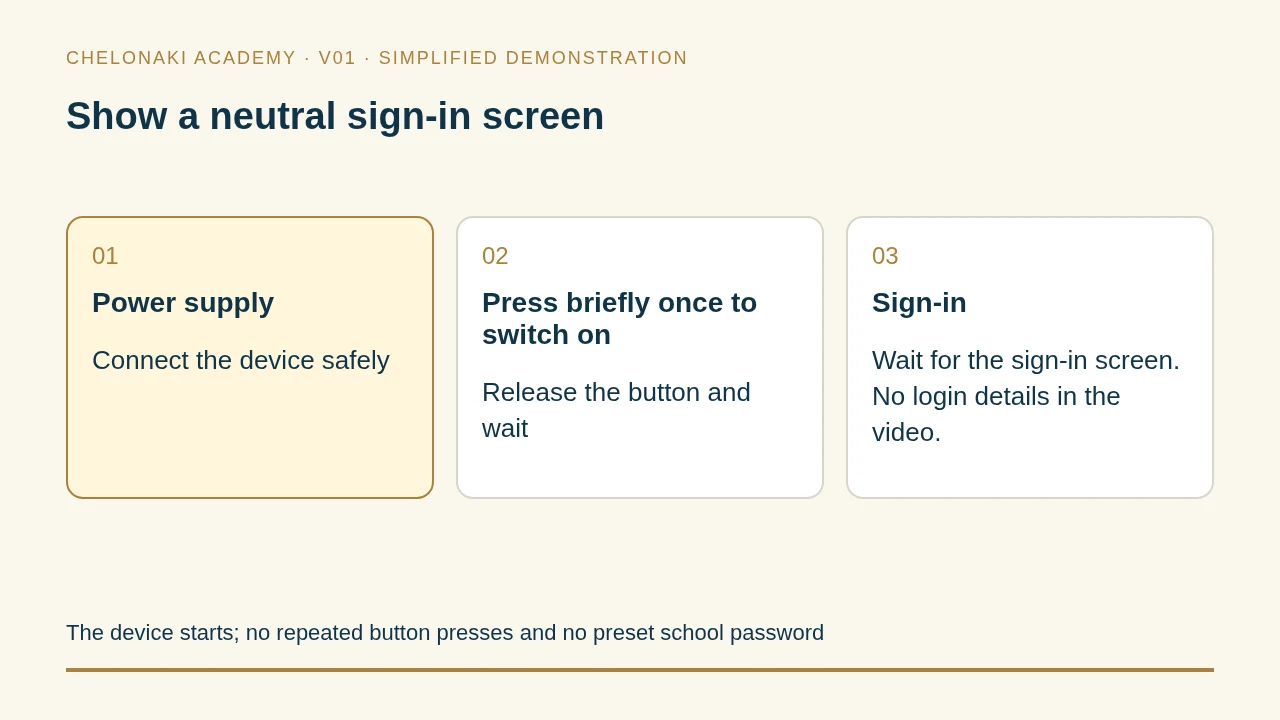
  1. Show the device’s power supply
  2. Highlight a single brief press of the power button
  3. Waiting phase
  4. Show a neutral sign-in screen

The device starts; no repeated button presses and no preset school password

Show the device’s power supply
Show the device’s power supply · simplified demonstration, no control of your device.
How to learn

Watch. Join in. Check.

Start with no prior knowledge: read eight short chapters, try three examples directly on this page and do three Word exercises on your own device. Then answer 40 questions. You check the Word exercises yourself; the test answers are explained immediately. There is no grade.

  1. 01Read chapters and click through examples
  2. 02Try the Word exercises yourself
  3. 03Answer 40 questions

Professor Chelos
Go at your own pace. Try the Word steps on your own device. If you choose a wrong test answer, I will help with a hint.

0 of 40 completed

Your test progress remains saved in this browser. You edit and save the Word exercises yourself on your device.

Before the test

Learn first. Then try it out.

The eight illustrated chapters start with switching on the computer and lead to your first Word note. If possible, have a computer with Word ready and try the steps straight away.

Switch on the computer and sign in

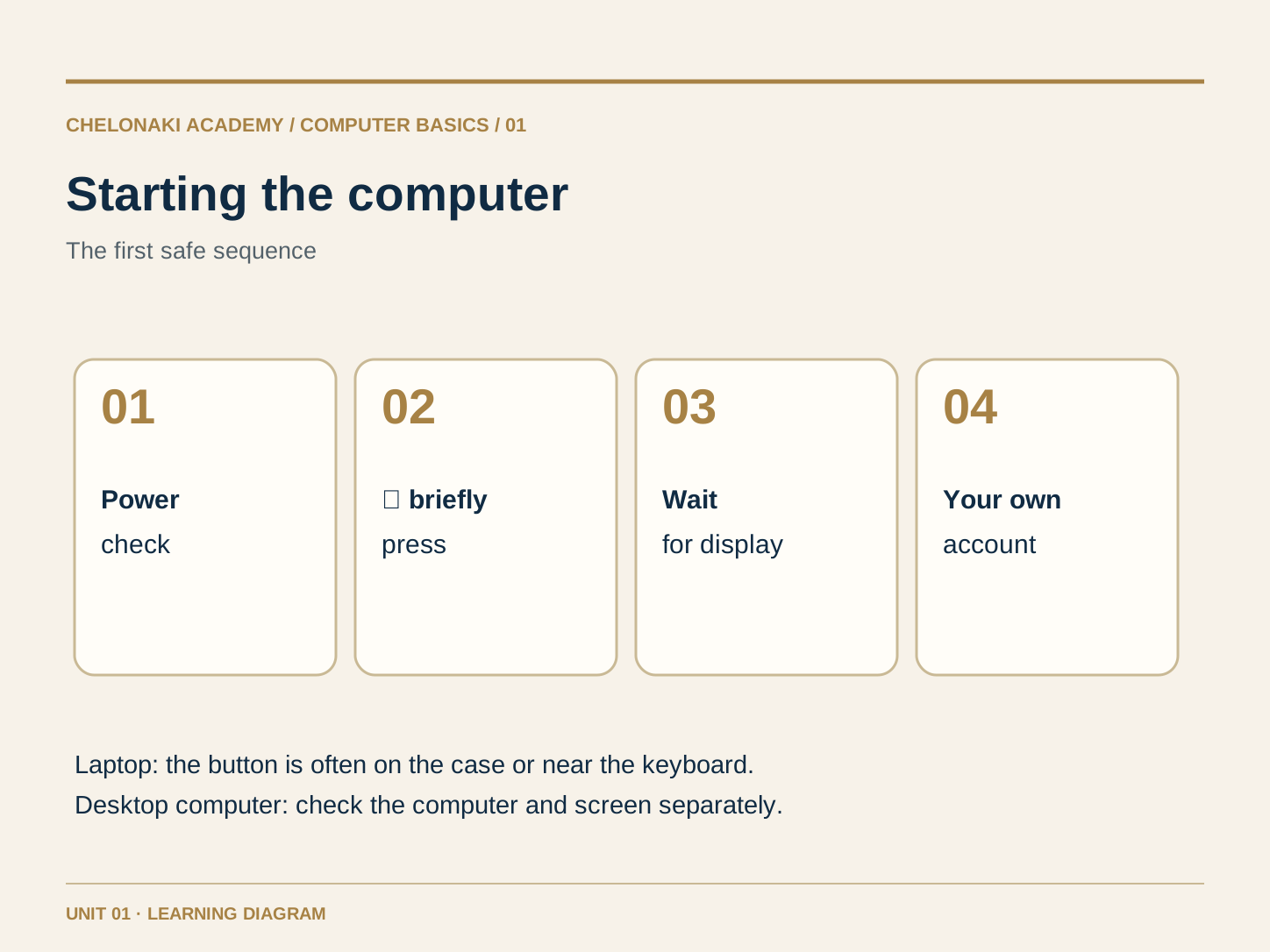
Place a laptop on a firm surface and open the lid. On a desktop computer, both the computer and monitor need power; check both cables. Find the button with the power symbol ⏻. Depending on the device, it may be on the case, at the edge or near the keyboard. Press it briefly once and wait for the sign-in screen. Sign in with your own account if one has been set up. A screen that has simply gone dark does not necessarily mean the computer is switched off. Do not press the button repeatedly; ask the person assisting you when using an unfamiliar device.

Example from everyday computer use

A laptop displays an image after a brief press of ⏻. You select your account and enter your PIN or password. The screen with icons and a bar appears.

Note Check the power press ⏻ briefly once wait sign in with your own account.
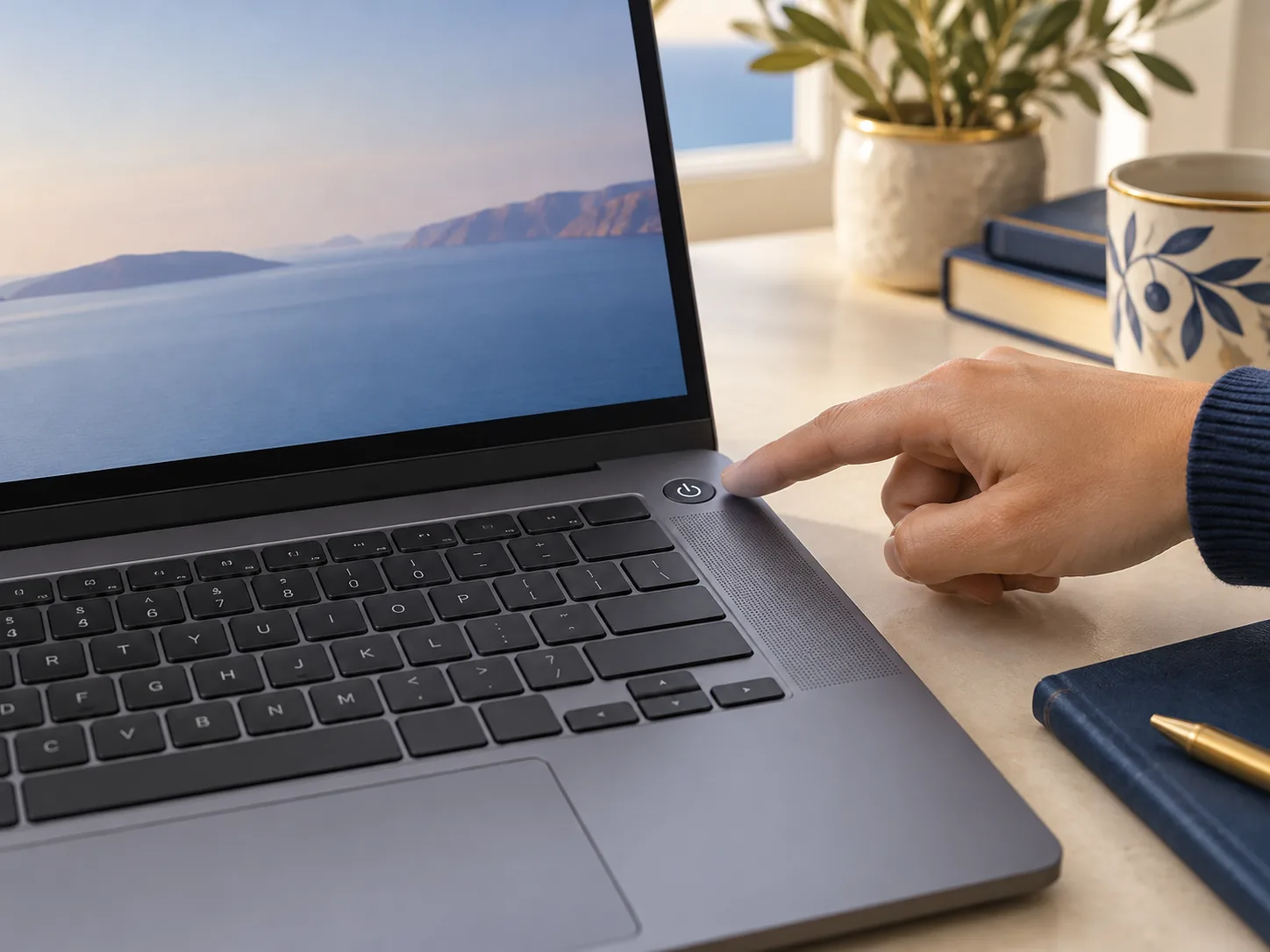
A finger points to the power button with the power symbol at the top edge of a laptop keyboard.
Laptop example: the power button is at the top right here. It may be somewhere else on your device.
Four steps: check power, briefly press the power button, wait and sign in.Open full-size image
Click to try · 1 of 3

What happens after switching on?

This model shows the sequence. It does not switch on your real computer or ask for login details.

Screen off

The screen is dark. First find the button marked ⏻ on the real device.

Try the mouse, touchpad and keyboard

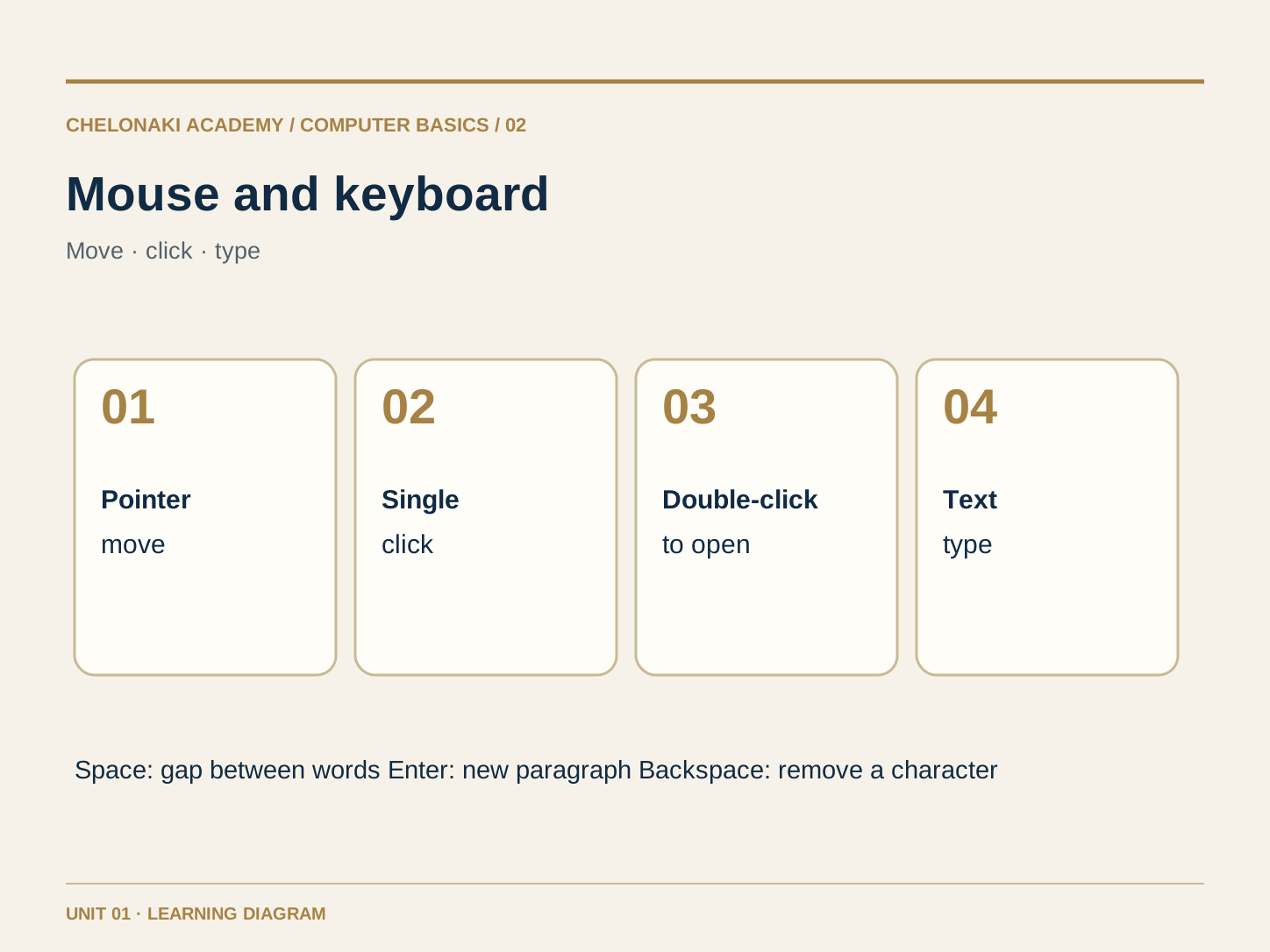
Move the mouse or slide one finger over the touchpad. The pointer on the screen follows. A single click selects something; a double-click may open a file or program. On many devices, a single click on a button already triggers the action. Use the keyboard to write text. The space bar inserts a space, Enter starts a new paragraph, and Backspace removes the character to the left of the blinking text cursor. Click in a text field before typing. Try each action slowly.

Example from everyday computer use

Click in an empty text field, type “Hello”, add a space and type “Team”. Use Backspace to remove the last character and type it again.

Note Move the pointer click the target see the blinking text cursor type.

Hands on a mouse and keyboard in front of a screen showing an empty document.
Mouse and keyboard at a workstation. The positions of individual keys may vary by device.
Mouse pointer, single click, double-click and the Space, Enter and Backspace keys.Open full-size image
Click to try · 2 of 3

One click to select, two to open.

Click the document icon once. Then open it with a double-click. On a phone or with a keyboard, you can also use the “Open” button.

The opened document will appear here.

Nothing selected yet. Start by clicking “Team note”.

Open programs and distinguish three office tasks

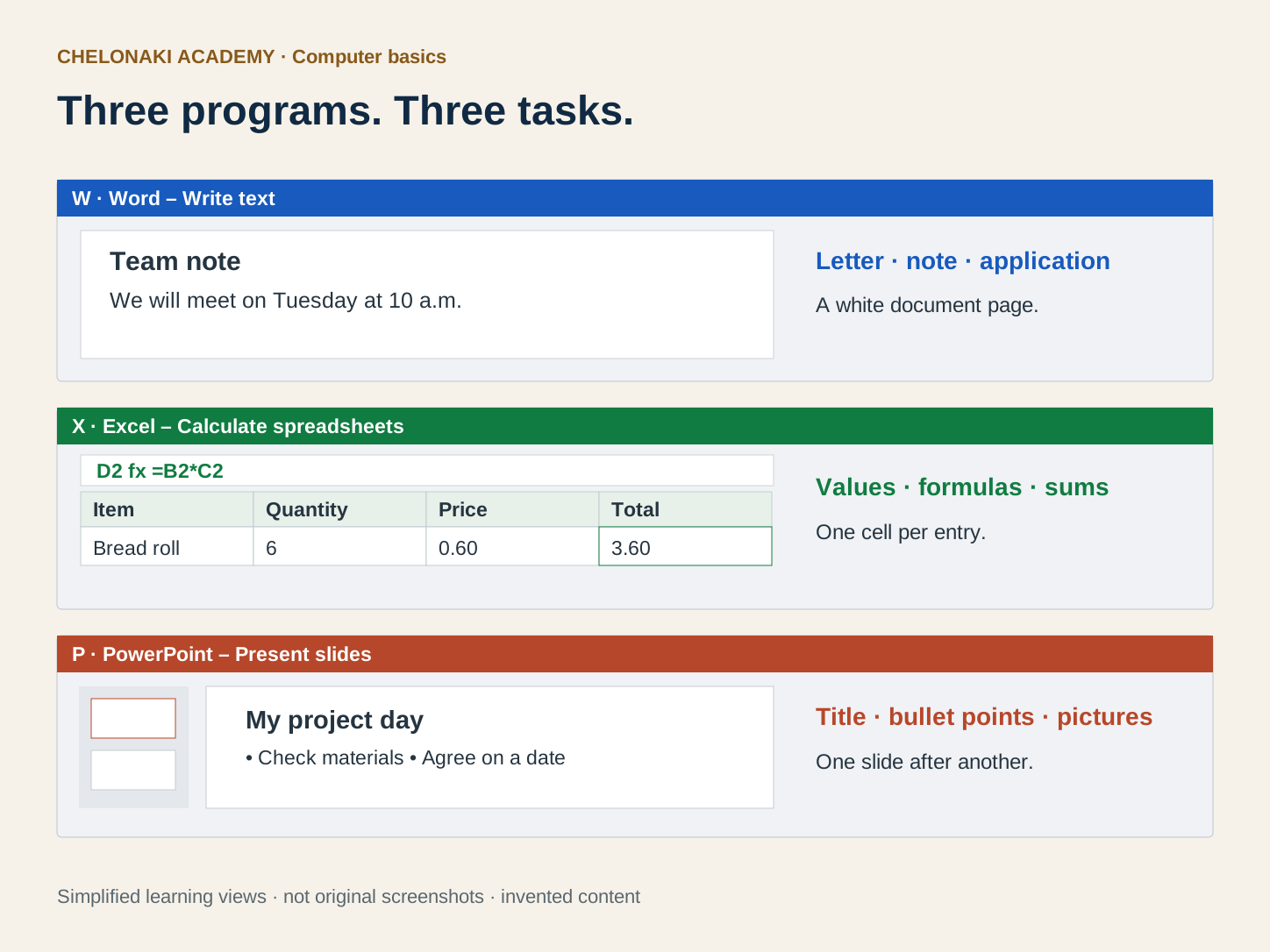
A program is a tool on the computer. Open it using an icon or search. Word is for texts such as letters, notes and minutes. Excel is for tables, lists and calculations. PowerPoint arranges content on slides for a presentation. At work, for example, you can write meeting notes in Word, list working hours in Excel and show results in PowerPoint. This unit practises Word first. You will find more free modules on Excel and PowerPoint in the computer basics overview. If Word is missing, you need access through your workplace or an eligible account of your own.

Example from everyday computer use

You want to write a short team note. Open Word for this. You do not need a list with totals or slides for this task.

Note Text Word. Table with numbers Excel. Talk with slides PowerPoint.

Three simplified program windows show a Word note, an Excel table with a formula and a PowerPoint slide.Open full-size image

Start a blank document in Word

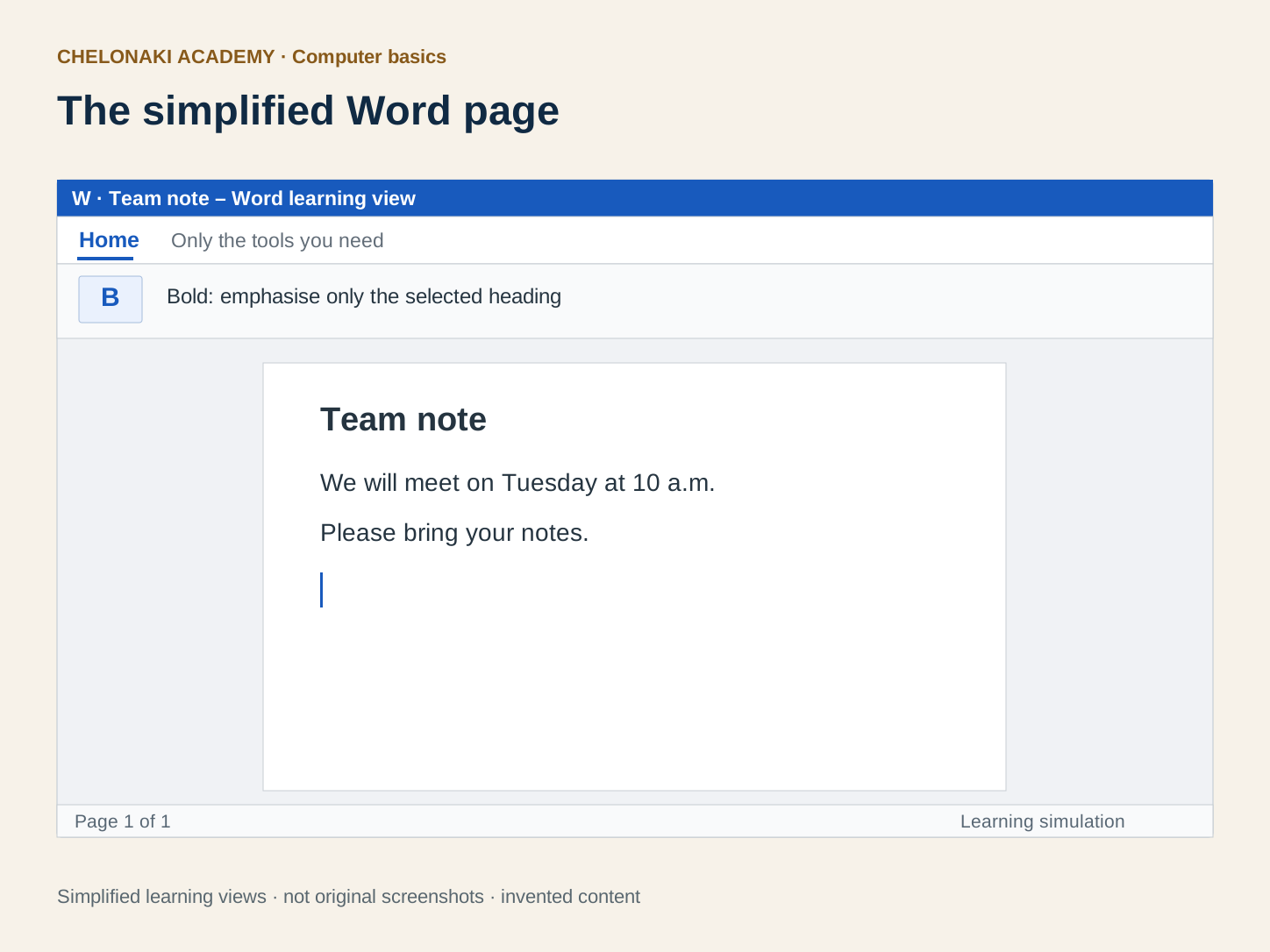
Open Word and select “Blank document”. Click on the white page: the blinking text cursor shows where the next letter will appear. Type “Team note” on the first line. Press Enter and type “We meet on Tuesday at 10 a.m.” below it. Write the content first; formatting comes afterwards. Buttons may look slightly different depending on the Word version on Windows, Mac or in the browser. Ask for help if the starting screen on your device differs.

Example from everyday computer use

The page now has two lines: “Team note” at the top and a complete sentence below. Clicking in the middle of the sentence places the text cursor exactly there.

Note Open Word Blank document click in the page write text.

A simplified Word window with a blue header, Home area, a bold tool and a white team-note page.Open full-size image

Correct text and create paragraphs

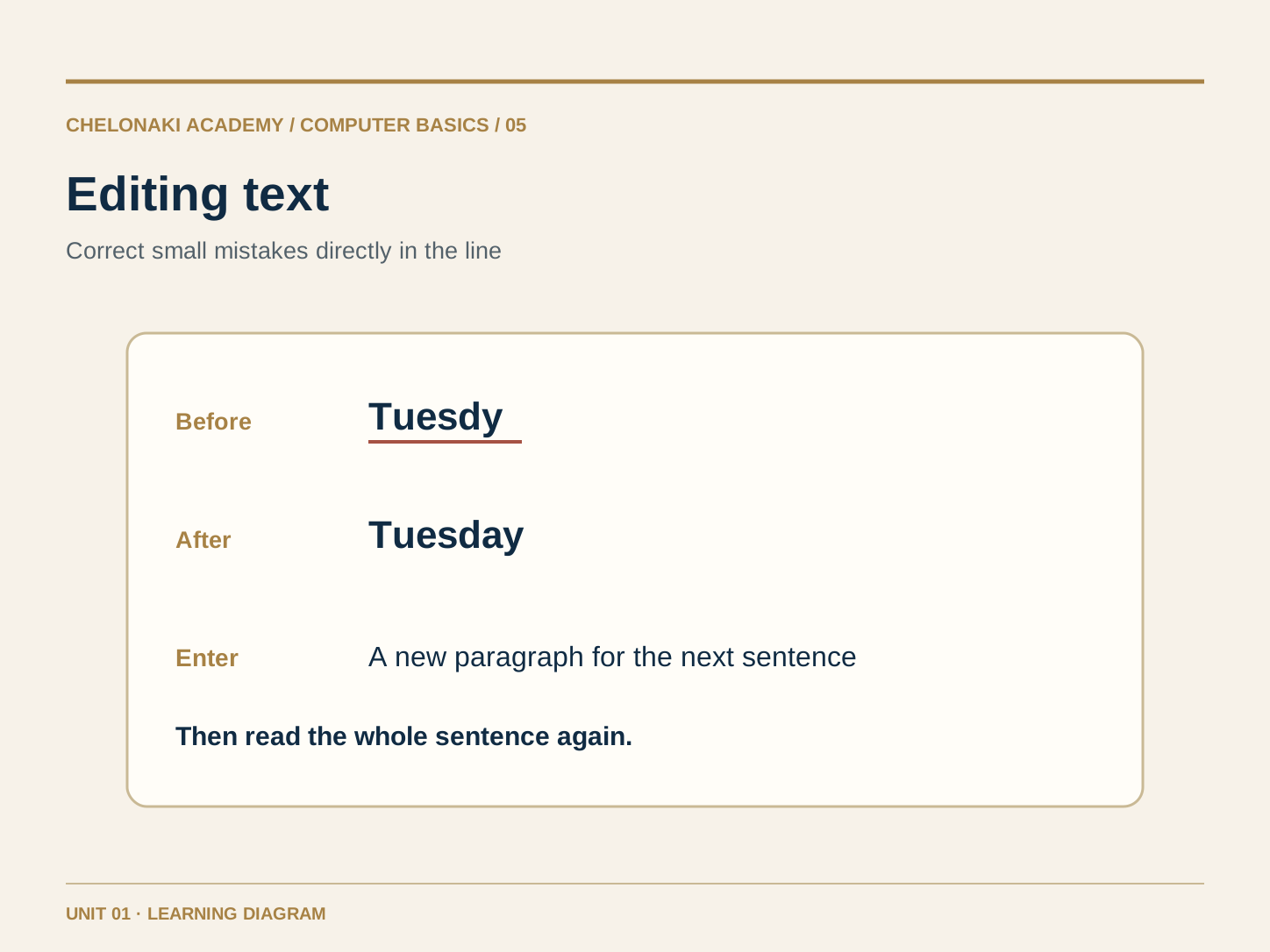
Mistakes are normal. Click directly after an incorrect word and use Backspace to remove individual letters; type the correct form. Enter starts a new paragraph. The space bar separates words; it is not a tool for large gaps or new lines. To undo an action, you can use Word’s “Undo” button. After each change, check that the sentence still makes sense. A heading and two short sentences are enough to get started.

Example from everyday computer use

Change “Tuesdy” to “Tuesday”. Place the text cursor at the end of the sentence, press Enter and add “Please bring your notes.”

Note Place the text cursor correctly correct read the result.

Correcting “Tuesdy” to “Tuesday” and starting a new paragraph with Enter.Open full-size image

Format a heading and a short list

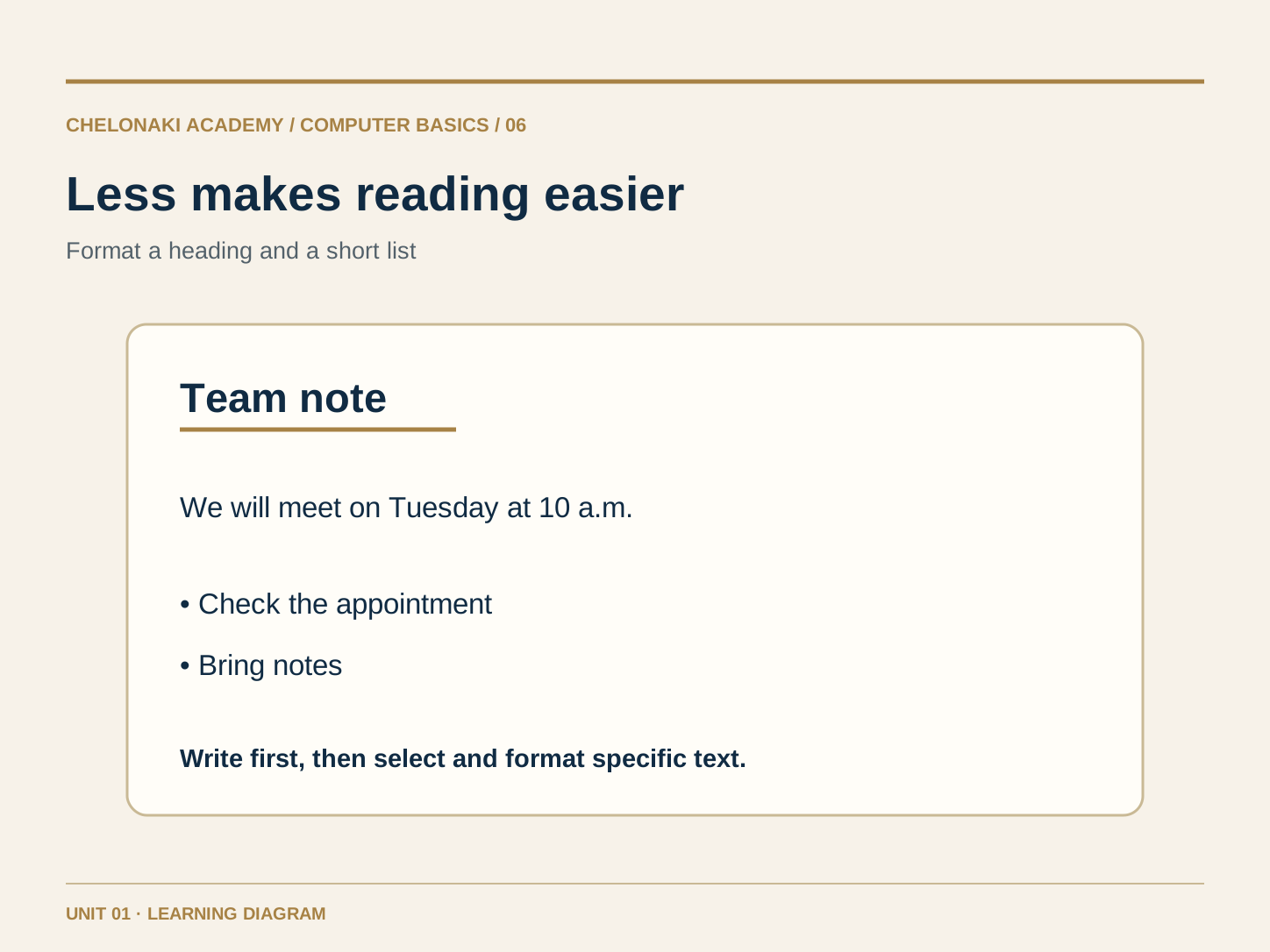
Select only the “Team note” line with the mouse. In the “Home” area, choose a heading style or make the text bold. The exact button depends on your Word version. Start by formatting only the heading; too many fonts and colours make reading harder. For several items, use the bullet-list button instead of inserting dashes and spaces yourself. Afterwards, read through the whole text once.

Example from everyday computer use

The items “Check the date” and “Bring notes” appear as a bulleted list below the heading. The heading is recognisable, while the rest of the text stays simple.

Note First write and check the text, then select precisely and use restrained formatting.

A simple Word page with a selected heading and a list of two items.Open full-size image

Save and find the Word document again

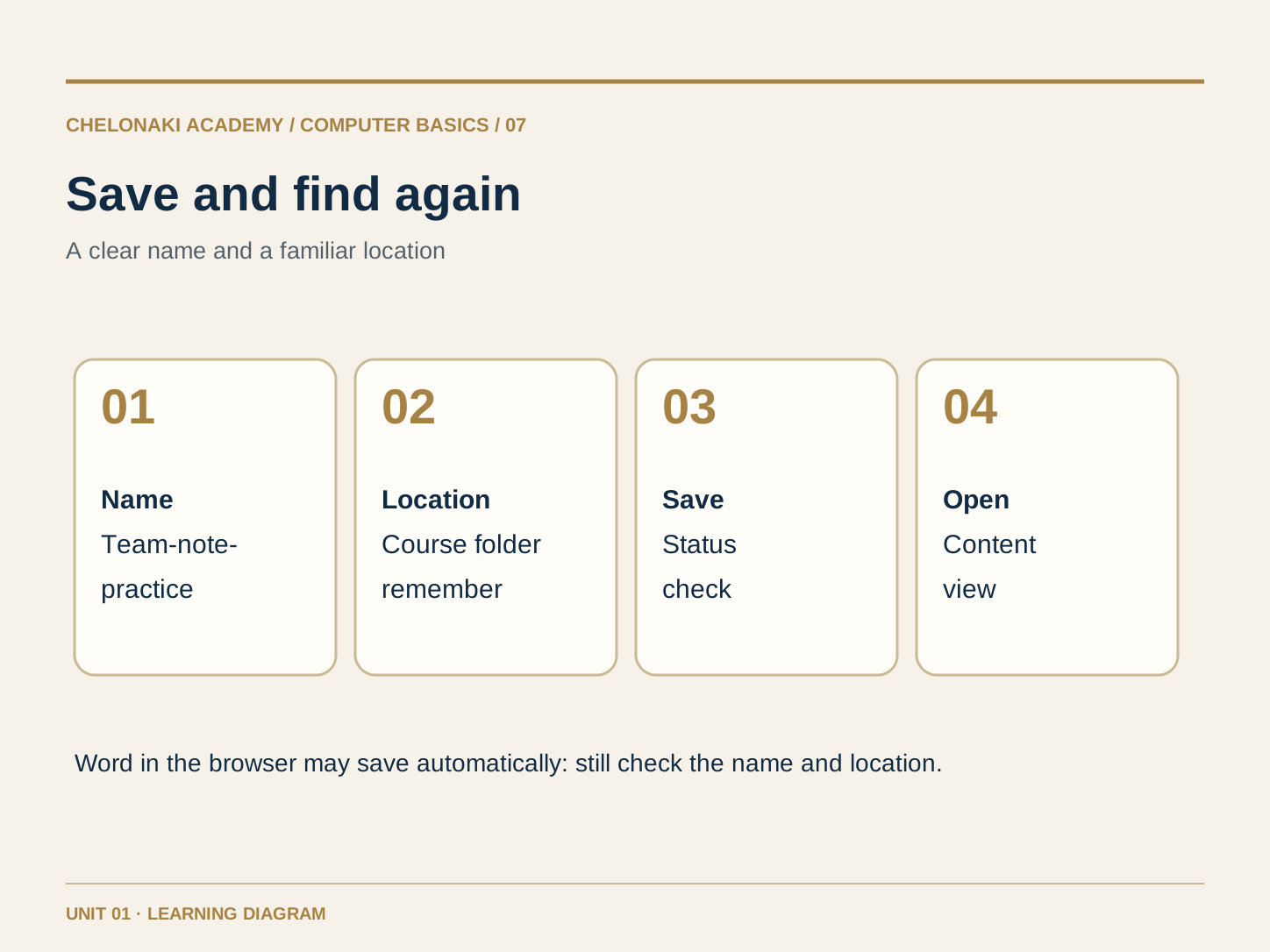
Give the document a clear name, such as “Team-note-practice”. When saving for the first time, choose a location you can find again, such as “Documents” or a course folder named by your teacher. Depending on the Word version, the commands are called “Save”, “Save as” or “Save a copy”. Word in the browser may save changes automatically in OneDrive; still check the name and save location. Close the document only once you know where it is. Then open it again and check your last sentence. Save again after making a change.

Example from everyday computer use

You save “Team-note-practice” in the course folder, close the document, open it again and find the heading and both sentences.

Note Remember the name and location save close open again check the content.

Sequence: name the Word document, choose a save location, save and open again.Open full-size image
Try it out · 3 of 3

Build a Word note.

This is a simplified preview on the website, not a real Word document. Enter only invented details. Reloading the page clears this exercise.

Team noteWord exercise
Learning simulation
HomeOnly the tools for this task
Font
Virtual save
Not remembered yetThis session only

Type into the fields. The preview changes immediately.

Then practise the same steps in real Word

Word at work: complete a small task yourself

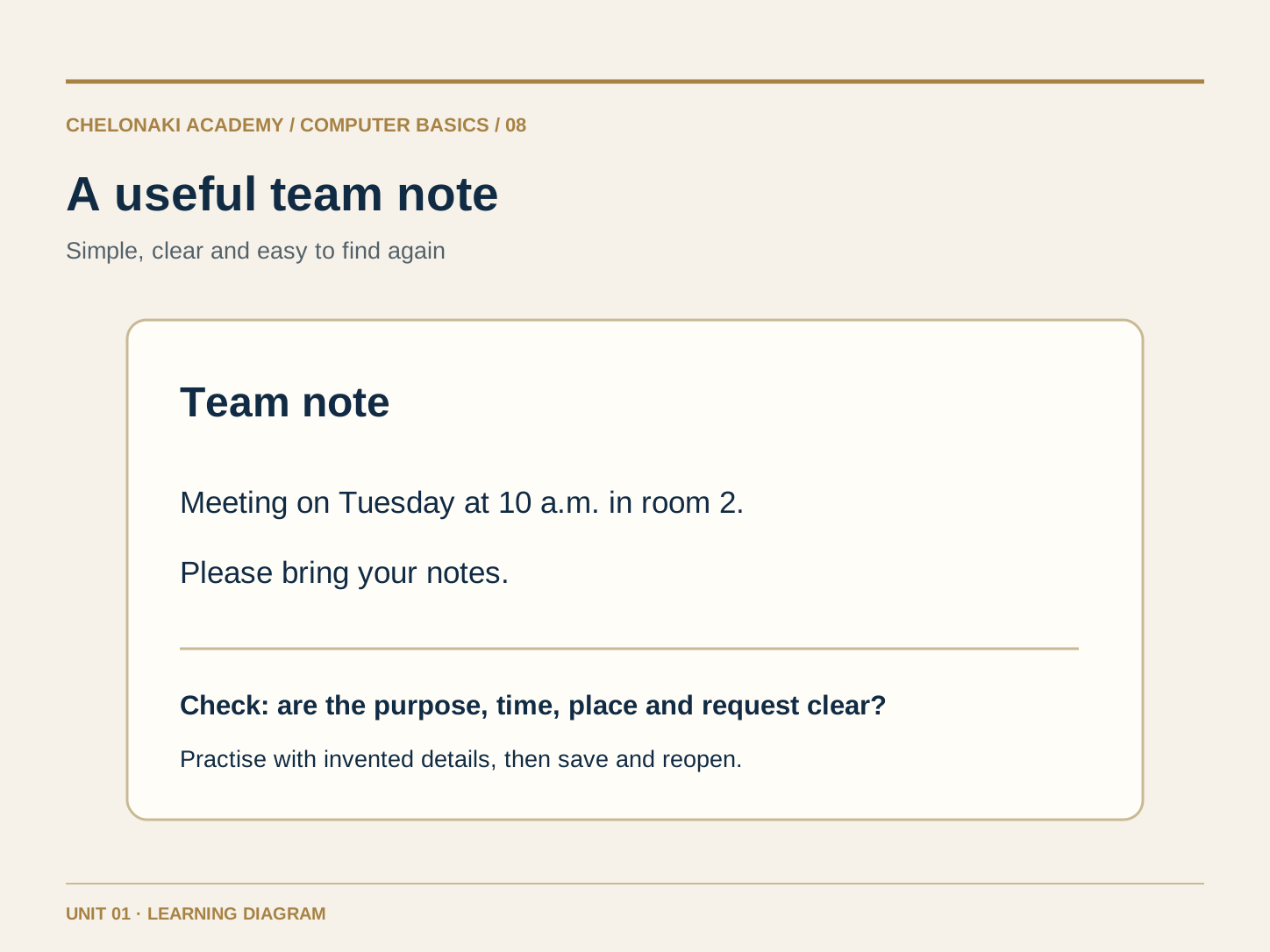
At work, Word helps with short messages, simple letters and meeting notes. What matters is that others understand the text: a clear heading, the reason, important information and, if needed, a request. Start practising with invented details. Check names, dates and spelling before passing a file on. You will learn sending, collaborative editing and printing later. For this first unit, a finished, saved document that you can open again yourself is enough.

Example from everyday computer use

Write a short note to a fictional team: “Meeting on Tuesday at 10 a.m. in room 2. Please bring your notes.”

Note Create a short, clear message and save it as a file you can find again.

A simple example of a work-related team note with a heading, meeting details and a request.Open full-size image
Practise on your own device

Three first exercises in Word.

Use invented details. You only need Word and a save location you can find again. The website cannot check your Word document; compare it yourself with the expected result below each exercise.

10 minutes

1. My first team note

  1. Open Word and choose “Blank document”.
  2. Write “Team note” as the heading.
  3. Underneath, write: “We will meet on Tuesday at 10 in room 2.”
  4. Start a new line and add: “Please bring your notes.”

Self-check: The page contains a heading and two understandable sentences.

5 minutes

2. Find a mistake and format the heading

  1. In the first sentence, deliberately change “Tuesday” to “Tuesdy”.
  2. Correct the mistake again and read the sentence.
  3. Select only “Team note” and make it bold.
  4. Optionally, add two points below using Word’s bulleted list: “Check the appointment” and “Bring notes”.

Self-check: “Tuesday” is spelled correctly; only the heading is emphasised.

10 minutes

3. Save, close and reopen

  1. Name the document “Team-note-practice”.
  2. Save it in a familiar folder or the specified course folder and note the location.
  3. Close the document and reopen it through Word or the folder.
  4. Check the second sentence, change one word and check the save status again.

Self-check: After reopening, both sentences and your latest change are present.

Have you tried the steps? The questions then check your understanding.

Start test
The test sections

What would you like to start with?

You can open any question directly and jump between questions at any time.

All 40 test tasks

01
Question 1 · 2 minutes · Still open

Power first

Switch on the computer and sign in

02
Question 2 · 2 minutes · Still open

Power button

Switch on the computer and sign in

03
Question 3 · 2 minutes · Still open

Press briefly

Switch on the computer and sign in

04
Question 4 · 2 minutes · Still open

Sign in

Switch on the computer and sign in

05
Question 5 · 3 minutes · Still open

Dark screen

Switch on the computer and sign in

06
Question 6 · 2 minutes · Still open

Mouse pointer

Try the mouse, touchpad and keyboard

07
Question 7 · 2 minutes · Still open

Single click

Try the mouse, touchpad and keyboard

08
Question 8 · 2 minutes · Still open

Double-click

Try the mouse, touchpad and keyboard

09
Question 9 · 2 minutes · Still open

Space bar

Try the mouse, touchpad and keyboard

10
Question 10 · 3 minutes · Still open

Backspace

Try the mouse, touchpad and keyboard

11
Question 11 · 2 minutes · Still open

Choose Word

Open programs and distinguish three office tasks

12
Question 12 · 2 minutes · Still open

Understand Excel’s purpose

Open programs and distinguish three office tasks

13
Question 13 · 2 minutes · Still open

Understand PowerPoint’s purpose

Open programs and distinguish three office tasks

14
Question 14 · 2 minutes · Still open

Work example

Open programs and distinguish three office tasks

15
Question 15 · 3 minutes · Still open

Open a program

Open programs and distinguish three office tasks

16
Question 16 · 2 minutes · Still open

Blank document

Start a blank document in Word

17
Question 17 · 2 minutes · Still open

Text cursor

Start a blank document in Word

18
Question 18 · 2 minutes · Still open

First line

Start a blank document in Word

19
Question 19 · 2 minutes · Still open

New line

Start a blank document in Word

20
Question 20 · 3 minutes · Still open

Content first

Start a blank document in Word

21
Question 21 · 2 minutes · Still open

Correct an error

Correct text and create paragraphs

22
Question 22 · 2 minutes · Still open

Start a paragraph

Correct text and create paragraphs

23
Question 23 · 2 minutes · Still open

Separate words

Correct text and create paragraphs

24
Question 24 · 2 minutes · Still open

Undo

Correct text and create paragraphs

25
Question 25 · 3 minutes · Still open

Proofread

Correct text and create paragraphs

26
Question 26 · 2 minutes · Still open

Select text

Format a heading and a short list

27
Question 27 · 2 minutes · Still open

Heading

Format a heading and a short list

28
Question 28 · 2 minutes · Still open

Bold

Format a heading and a short list

29
Question 29 · 2 minutes · Still open

Bulleted list

Format a heading and a short list

30
Question 30 · 3 minutes · Still open

Readability

Format a heading and a short list

31
Question 31 · 2 minutes · Still open

File name

Save and find the Word document again

32
Question 32 · 2 minutes · Still open

Save location

Save and find the Word document again

33
Question 33 · 2 minutes · Still open

Automatic saving

Save and find the Word document again

34
Question 34 · 2 minutes · Still open

Open again

Save and find the Word document again

35
Question 35 · 3 minutes · Still open

After a change

Save and find the Word document again

36
Question 36 · 2 minutes · Still open

Message

Word at work: complete a small task yourself

37
Question 37 · 2 minutes · Still open

Important details

Word at work: complete a small task yourself

38
Question 38 · 2 minutes · Still open

Make a request

Word at work: complete a small task yourself

39
Question 39 · 2 minutes · Still open

Practice data

Word at work: complete a small task yourself

40
Question 40 · 3 minutes · Still open

Check the result

Word at work: complete a small task yourself

A laptop and mouse in a learning space
Without time pressure

At your pace.

You can open, repeat or skip any question directly. At the end you will receive a note card that you can copy.

Start test